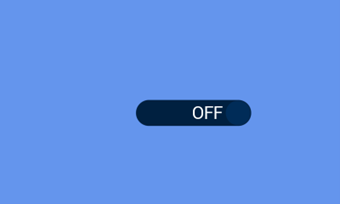
Toggle Switch
Introduction
The following tutorial explains how to create and modify a Toggle switch widget. Toggle switches are mainly used for, as the name suggests, toggling. This is usually either some form of power toggling or a setting with only 2 possible values.
Creating a toggle switch object
To create a toggle switch you use the toggle switch widget command:
[gui.CTRL_TOGGLE, x, y, width, font, state, display_text, cb_func]
Input Parameters:
x [int] = x coordinate
y [int] = y coordinate
width [int] = integer for the distance for x to draw to.
font [int] = font of the text.
state [bool_int] = 1 - left state, 0 - right state.
display_text[bytestring] = 2 pieces of text separated by xff.
cb_func [func] = callback function to be triggered when a press has been released.
This takes the following input: x coordinate, y coordinate, width, font, the state (an int that is either a 1 or 0), a bytestring separated by xff showing the text to be displayed in each state and a callback function that happens after the button is released as inputs.
This program shows a program to display a toggle switch that currently does nothing:
import gui
def toggle_cb(button):
    pass

toggle_switch = [gui.CTRL_TOGGLE, 350, 250, 210, 31, 0, [b'ON\xffOFF'], toggle_cb]

gui.show([
    # Xpos, Ypos, width, font size, state, bytestring text, callback
    toggle_switch,
])
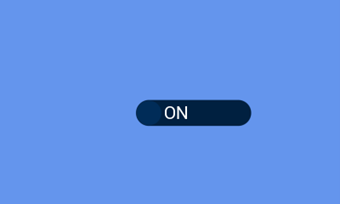
Using the callback function
The main use for the callback function is to change the state of the toggle switch or more specifically the variable that the toggle switch uses. This simple bit of code does so:
import gui
def toggle_cb(button):
    toggle_switch[5] = 65535 if toggle_switch[5] == 0 else 0
    print(toggle_switch[5])
    gui.redraw()

toggle_switch = [gui.CTRL_TOGGLE, 350, 250, 210, 31, 0, [b'ON\xffOFF'], toggle_cb]

gui.show([
    # Xpos, Ypos, width, font size, state, bytestring text, callback
    toggle_switch,
])