Connecting to the Console
Applies to:
VBOX Touch and MFD Touch variants only
Introduction
The VBOX Touch has a serial console available to aid with development and debugging, this can be accessed by connecting to the top serial port on the unit.
The instructions of how to do so are detailed in this page.
Note:
The standard functionality of the serial console can be modified, see the Serial Tutorial section for details
Serial ports
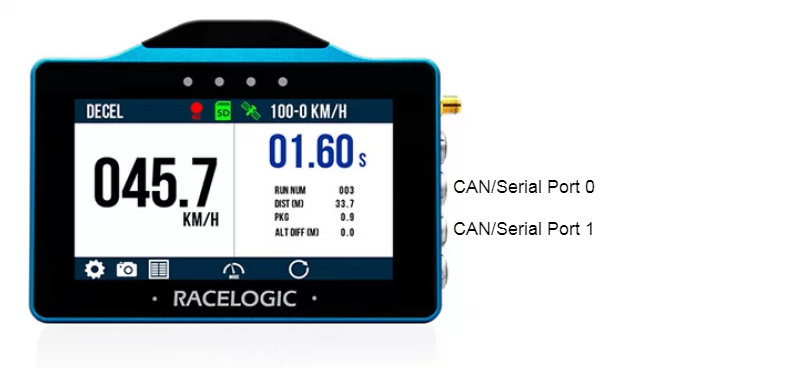
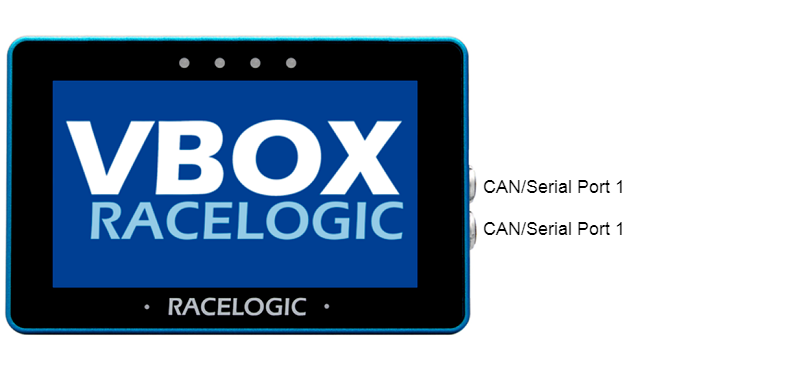
On the VBOX Touch, there are 2 serial/CAN ports that can be configured, on the MFD there are 2 ports that only use one CAN bus between the 2. These ports are 5-way LEMO holes. When upright the top port is serial port 0 and hence the lower one is serial port 1. Both serial ports can be turned on and off remotely through python commands as well as be assigned to have various settings depending on what the user needs them for. This is done using a python dictionary with the key referencing type and the value of what to assign the connection type as.
VBOX Touch
MFD Touch
Physical connection
The Serial connection uses a 5-way LEMO connector to 9-way D female. This is called the RLCAB001 or CAB1 for short. Use the 5-way LEMO end which is the one with 5 pins and insert it into either CAN/Serial port with the red dot facing up toward you when looking from the screen side. Then connect the 9-way D female to the 9-way D male to the USB A cable. This is the most common port on PCs, if you are using a Mac however you may not have one. In this case, extend into a USB A to USB C. After this has been completed you should have a complete connection from your PC to the VBOX Touch.
PC connection
After downloading TeraTerm (details of how to do so can be found here) it is time to run a terminal. Before doing so, however, you need to find which port your device is plugged into on your PC. To do so on a windows PC you will need to press the Start button + type “Device Manager”.
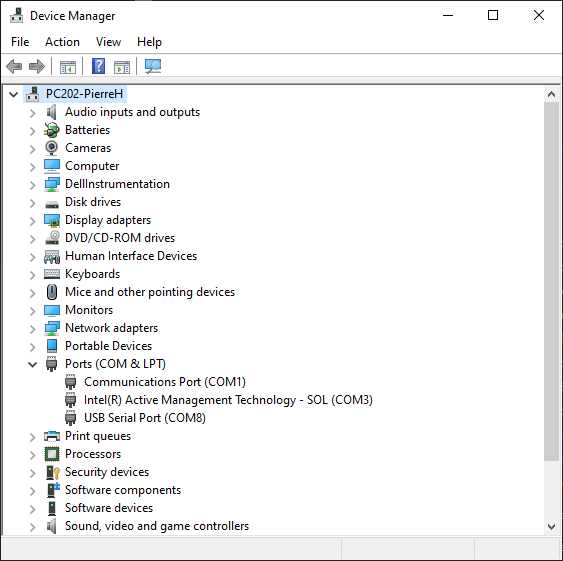
You should now have a screen that looks like the above image, find the section called Ports (COM & LPT) and expand it. The ports that say “USB Serial Port” are the ports you need to pay attention to. In the case above it is COM8.
Now open a TeraTerm terminal. You should have 2 small windows pop up. The important one is Tera Term: New connection, the other is the terminal you will use once connected. On this window change the mode to Serial and then select the relevant port which you should have found using the steps above.
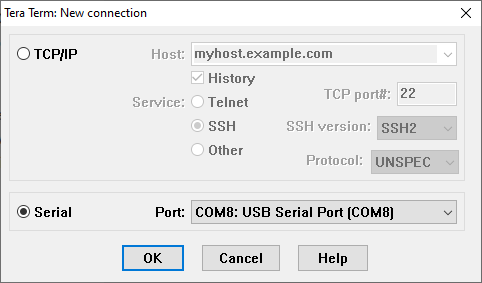
It should look like this. Now hit OK. The other window should change to “COM NAME” – Tera Term VT. Before trying to do anything further we need to configure the baud rate to match that of the VBOX Touch. On the top ribbon bar, click “Setup” and then “Serial port…”
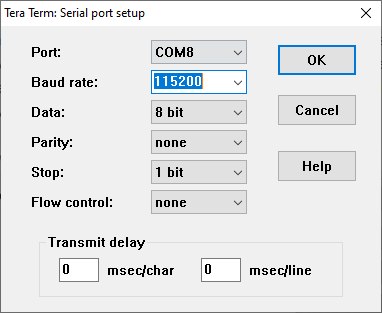
This should open a window like the image above. From here click on the Baud rate drop-down and select “115200”. Then click OK.
NOTE:
You can also change to a different port here in case you got the wrong one originally.
Your TeraTerm should now be configured to send and receive data.
As just mentioned, TeraTerm can send data. This means that you can use it for quicker and easier software development as you do not need to take out and put in the SD Card every single time. Instead, you can press Ctrl+E which will open a terminal like the one below:
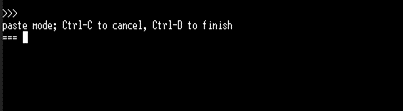
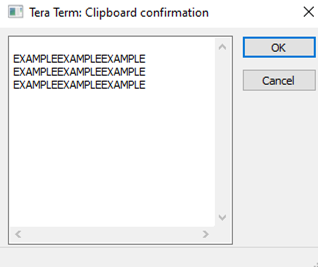
You can then right-click and paste whatever is most recently in your copy clipboard into here. Then press Ctrl+D to confirm this as it says above. This program will then run immediately which makes it much quicker for testing. The clipboard copy menu is shown below.
Console output
Once the console is connected and the serial terminal is configured you should see similar messages to below when the unit is powered on
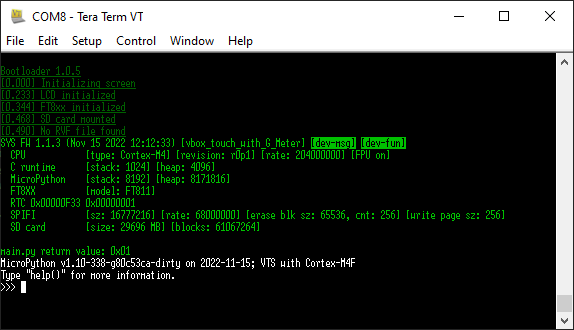
This output contains details about the system version and hardware, it also may contain debugging information from the application you are running, see below for how to add debug information to your application
Writing to the console
In order to aid with your app development you can output data to the console from your code. To do this you use the print command as you normally would with any terminal. This should write this to the console.
Try making a main.py file and inserting ‘print(“HELLO WORLD”)’. This should output the following after the start message:
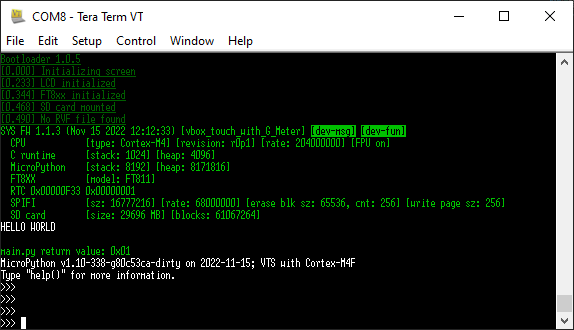
Writing from the console
Now try writing from the console to the VBOX Touch. In TeraTerm press CTRL + E. This should load the following screen:

Now type ‘print(“HELLO WORLD”)’ and press CTRL + D. This should print to the console like below:

Issues
If you are pressing CTRL + E and this isn’t working to bring up the screen above try pressing CTRL + C. This should insert the >>> prompt and crash your current program but the VBOX Touch will still be working completely fine.
If this still doesn’t fix your program then get your SD Card and create a main.py file but do not put anything in it, have it as empty. Now insert this into your VBOX Touch and power cycle. This should fix any issues you were having.
Help
If you want to know more about modules while in the console you can use the help function of the console. For example typing help(vbox) will give you basic information about the methods in the vbox module. However, it is recommended that instead you read the documentation if you need to know how to use these methods.
Exceptions on the console
In the event that an exception occurs as well as being displayed on the screen in most cases it will be output to the console, so it is beneficial to have the console connected at all times whilst developing in case an exception occurs.