Slider
Introduction
This tutorial explains how to create a slider widget. These are mostly used to determine the value of something with multiple possible values for example: colour, brightness, etc.
Creating a slider
Similarly to the button you need to use a widget command to create this however with different inputs.
slider = [gui.CTRL_SLIDER, x, y, width, height, scale, val]
Input Parameters:
x [int] = x coordinate
y [int] = y coordinate
width [int] = integer for the distance for x to draw to.
height [int] = integer for the distance for y to draw to.
scale [int] = The scale for the bar.
val [list[int]] = The current value of the slider along the bar.
The slider takes an x coordinate, y coordinate, width, height, max value and an int list variable as inputs. The variable is usually a list with a single int inside it which will be your start value, in this example that is:
slider_num = [0]
This variable is initialised and kept outside of gui.show(). Try displaying the slider using the following code:
import gui

slider_num = [0]

text = [gui.CTRL_TEXT, 275, 180, 30, 0, "Slider val: {}".format(slider_num[0])]
slider = [gui.CTRL_SLIDER, 275, 230, 250, 20, 100, slider_num]

gui.show([
    text,
    slider, # when pressed the button will always be dark blue
])
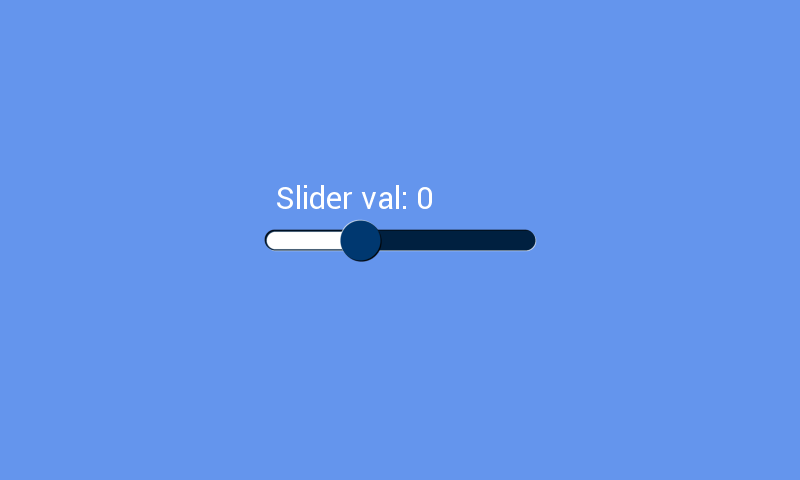
Try interacting with it. You will notice that it does not show its current value in the text icon, this is also shown in the screenshot below.
Using the slider variable
To get the text value to update it needs to be assigned its new value and then redrawn. This can be done with:
[gui.EVT_REDRAW, redraw_cb]
By making the redraw_cb() function assign the most recent value from the slider to the text:
def redraw_cb(b):
    text[5] = "Slider val: {}".format(slider_num[0])
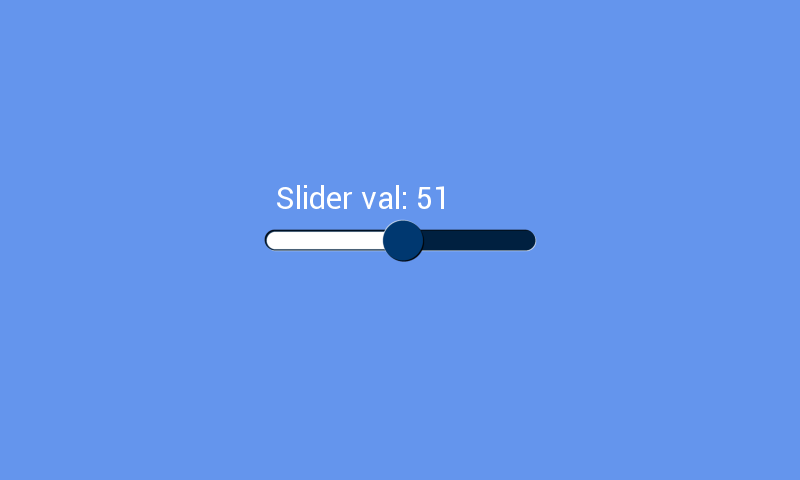
After implementing this the code does the following:
Adding colour to a slider
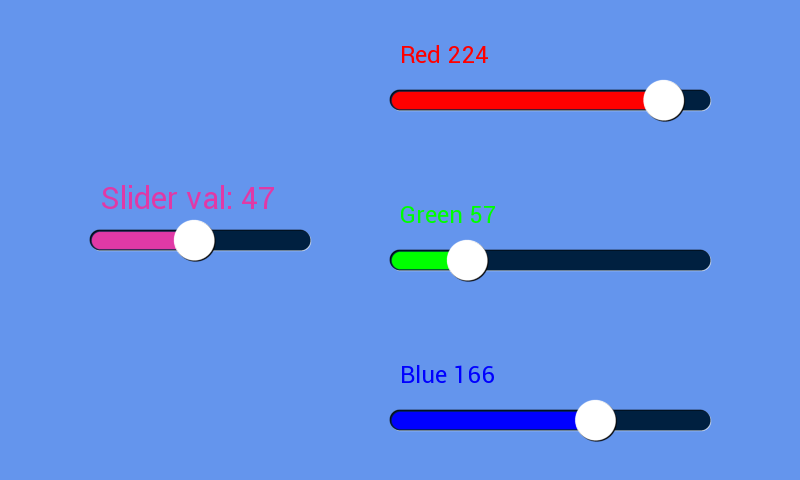
To colour a slider use the following: FG_COLOUR (determines the colour of the knob), BG_COLOUR (determines the colour of the right side of the slider) and DL_COLOR_RGB (determines the left side of the slider). The following program shows a detailed program that allows you to customise the colour of the text and slider on the right using the other sliders which are RGB:
import gui
import gui_utils

gui.redraw()

slider_num = [0]
red_num = [0]
green_num = [0]
blue_num = [0]
colour = [gui.DL_COLOR_RGB(red_num[0], green_num[0], blue_num[0])]

def redraw_cb(b):
    global colour
    red_slider_text[5] = 'Red {}'.format(red_num[0])
    green_slider_text[5] = 'Green {}'.format(green_num[0])
    blue_slider_text[5] = 'Blue {}'.format(blue_num[0])
    text[5] = "Slider val: {}".format(slider_num[0])
    colour[0] = gui.DL_COLOR_RGB(red_num[0], green_num[0], blue_num[0])


text = [gui.CTRL_TEXT, 100, 180, 30, 0, "Slider val: {}".format(slider_num[0])]
slider = [gui.CTRL_SLIDER, 100, 230, 200, 20, 100, slider_num]
red_slider_text = [gui.CTRL_TEXT, 400, 40, 29, 0, 'Red {}'.format(red_num[0])]
green_slider_text = [gui.CTRL_TEXT, 400, 200, 29, 0, 'Green {}'.format(green_num[0])]
blue_slider_text = [gui.CTRL_TEXT, 400, 360, 29, 0, 'Blue {}'.format(blue_num[0])]

gui.show([
    gui_utils.FG_COLOUR(0xFFFFFF), # white background
    [gui.DL_COLOR_RGB(0,0,0)], # black text
    [gui.EVT_REDRAW, redraw_cb],
    colour, # customisable colour
    text,
    slider, # when pressed the button will always be dark blue
    [gui.DL_COLOR_RGB(255,0,0)],
    red_slider_text,
    [gui.CTRL_SLIDER, 400, 90, 300, 20, 0xff, red_num],
    [gui.DL_COLOR_RGB(0,255,0)],
    green_slider_text,
    [gui.CTRL_SLIDER, 400, 250, 300, 20, 0xff, green_num],
    [gui.DL_COLOR_RGB(0,0,255)],
    blue_slider_text,
    [gui.CTRL_SLIDER, 400, 410, 300, 20, 0xff, blue_num],
])
The following screenshot shows the results of this program: