Getting started
This section describes how to start with app development on the VBOX Touch.
Loading your first program
To start, let’s try downloading a program designed to show some of the hardware features of VBOX Touch. Click here to download. Once downloaded, copy the file onto your SD card. Then insert this SD card into your VBOX Touch and power cycle it. It should then show a display that looks like this:
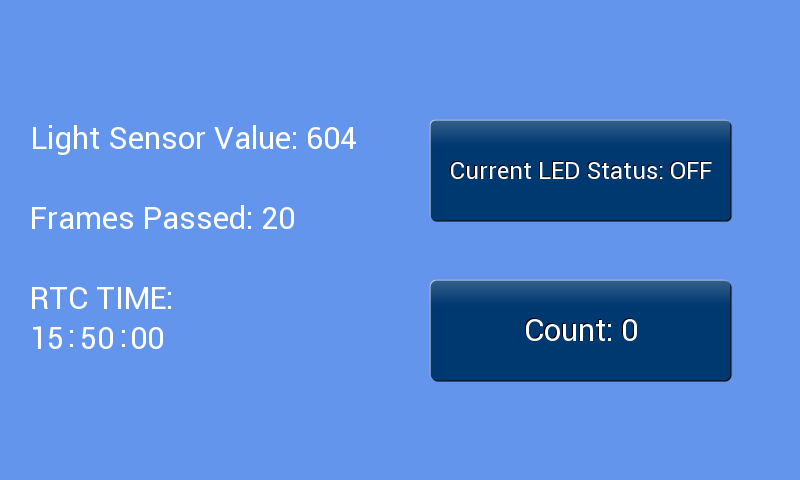
After a few seconds it will have changed to look like this from the interactions you have had with the screen.
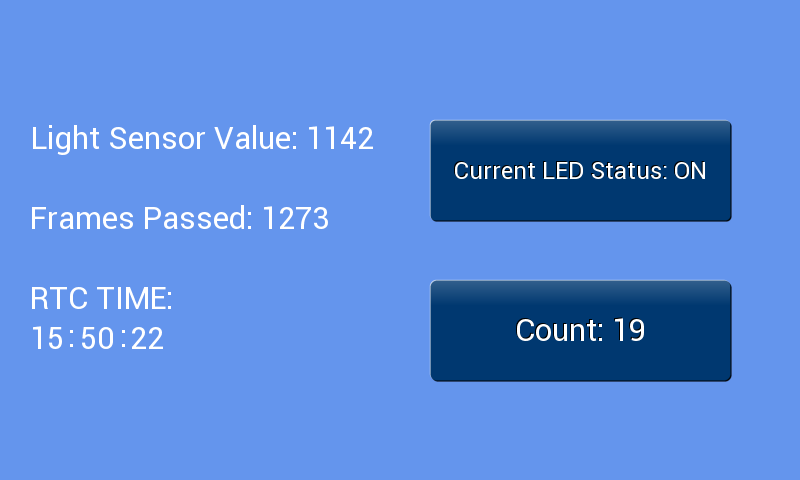
Now, you can try downloading an existing program for the VBOX Touch. These can be found here. Once on this page, scroll all the way to the bottom and click on the ‘Download script examples’ button.
This will download a zip file of some example scripts for the VBOX Touch. Now “Extract All” from the zip file. After doing so go into any of the programs, we recommend the Graphics program, and then copy all the files and paste them onto the SD Card that you use with your VBOX Touch. You will notice there is a main.py file, this will be what the VBOX Touch runs when it boots up.
Now insert this SD Card into your VBOX Touch and power cycle it on. If you are using the graphics program it should look something like this:
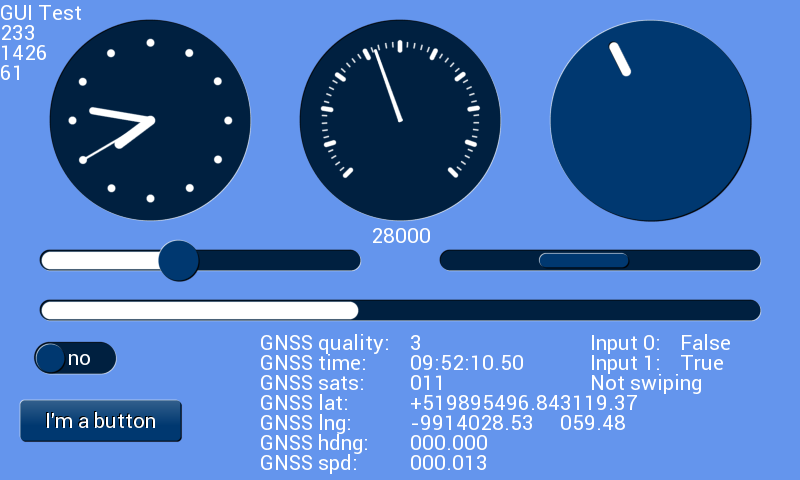
Try doing this again with a program of your choice. Simply ensure all files from the spifi, frozen and frozenfs files have been inserted without their respective folders onto your SD Card and that your main.py file has changed to the new one.
Note
Code is not written to the VBOX Touch itself and so to return it to normal functionality simply delete the main.py file from your SD card then reboot the unit or reboot it without the SD Card inserted. This will return it to normal functionality.
Writing your own code to the VBOX Touch
The VBOX touch is designed to require no setup or specialist software to write code for it, code can be created with Notepad and an SD Card, you can simply write some python code to a file, call the file main.py and place it on the root of the SD Card, then when inserted into the VBOX Touch and powered on that code will run.
You can try this for yourself:
Open Notepad on your PC and copy the lines below into a blank text file:
import vts
vts.leds(255,0,0,  0,255,0,  0,0,255,  255,255,255)
Save the file as main.py on the root directory of an SD card.
Insert the SD card into the VBOX Touch and power it on.
At this point, the unit should boot and the LEDs light up Red, Green, Blue and White. The section on LEDs explains how this code works.