Basic serial commands
Applies to:
VBOX Touch and MFD Touch Variants only
Configuring ports
To configure your serial ports on the VBOX Touch you need to use the config function within the vts module. This is used to set the active ports and what they are assigned to.
import vts
vts.config({'serialREPL':0, 'serialUSER':0, 'serialConn':0})
This takes a dictionary as input. This dictionary is of the 3 serial streams and the port they are connected to. Port 0 is not a port and hence is used to disable a connection. Port 1 and 2 are Serial 0 and 1 respectively. Hence the code above will set the debug, user and conn streams to port 0 (a port that doesn’t exist). This means they will be in an off state and will do nothing to the unit.
NOTE:
It is advised to disable all ports at the beginning of the code to ensure that there are no saved default settings/data being sent over the ports which can sometimes lead to errors.
You can assign to individual stream, you do not have to them all at once.
vts.config({'serialREPL':1})
Here the code sets serial debug stream to be at port 1.
Note:
You can also change your port config to allow for crashes from the REPL using ‘uPyIntChar’. The item in this case is the ASCII key that will crash it. We go with 3 as this is the EXT key in ASCII. This is a programming standard and can be called using CTRL + C.
Opening and closing the serial port
To receive data from the serial port without using a REPL you will need to import the serial module
import serial
This module simplifies the process of getting serial data and sending data back.
To open a serial port using this module you can use the following function:
baudrate = 115200
serial.open(baudrate)
It takes a parameter of the baudrate of the port that you are opening. The baudrate defaults to 115200. The reason this is the case is because this is the standard baudrate used by Racelogic.
Closing a serial port connection is even simpler as you just need to call the close function as follows:
serial.close()
Output to a serial stream
To send data back from the VBOX Touch through the serial stream you have to write a buffer protocol to the serial stream using the write function.
serial.write("Test String")
serial.write(b"Test ByteString")
serial.write(bytes(100))
serial.write(bytearray(100))
This takes any buffer protocol (string, bytestring, bytes, bytearray) as an input and writes this to the serial stream.
The below example demonstrates configuring and opening the serial port and then writing to the serial stream.
import vts
import gui
import serial

# callback function for when the button is pressed
# outputs the bytestring to whichever port the serial is connected to
def button_cb(ctrl):
    print("Message sent")
    serial.write(b"Hello World")

vts.config({'serialREPL':0, 'serialUSER':0, 'serialConn':0}) # disable ports
# assign debug port to the top serial port
# assign user port to the bottom serial port
vts.config({'serialREPL':1, 'serialUSER':2})
# open the serial port connection
serial.open()

# creates a button that calls the button_cb function
gui.show([
    [gui.CTRL_BUTTON, 275, 190, 250, 100, 24, "Press button -> Test", button_cb],
])
If you wish to receive the data back you will have to add this code to your SD Card as main.py. Then you will need to run the following code as a python script on your PC.
import serial
import serial.tools.list_ports as ports
from time import sleep

def read_in_serial_data():
    response = serialport.read(serialport.in_waiting)
    if not response:
        # print("No Data received from Serial port")
        sleep(0.5)
    else:
        response_text = ''
        for char_index in range(0, len(response)):
            response_text += chr(response[char_index])
        print("RECEIVED MESSAGE: {}".format(response_text))


if __name__ == "__main__":
    while True:
        try:
            available_ports = [comport.device for comport in ports.comports()]
            print("Available ports: {}".format(available_ports))
            if len(available_ports) == 1:
                comport = available_ports[0]
            else:
                comport = input("Select comport: ")
            baud = 115200 # input("Select baud rate: ")
            serialport = serial.Serial(
                port=comport, baudrate=baud, bytesize=8,
                timeout=2, stopbits=serial.STOPBITS_ONE
            )

            # Raises exception here if settings are incorrect or error is detected
            print("\nOpened Serial Port\n")
            break

        except KeyboardInterrupt: # Use Ctrl + C to exit the script
            print("Exiting...")
            exit(0)

        except Exception as sse:
            # FileNotFoundError: COM Port does not exist
            # PermissionError: COM Port already in use
            print("Error: " + str(sse))
            continue

    while 1:
        read_in_serial_data()
If this isn’t working check that you have your RLCAB001 in the correct port. It should be in the lower serial port. If you have 2 cables make sure you are connecting to the correct one with your PC.
The expected output from the REPL port (top port) is displayed below.
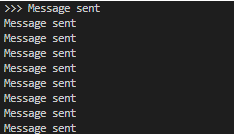
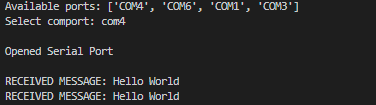
The expected output from when the python program is run and the button is pressed twice is shown below.
Receiving data on the VBOX Touch
The serial module has a function that allows you to check how much data is in the serial stream that hasn’t been read in. This is the available function.
bytes_available = serial.available()
This function returns the amount of bytes that are waiting to be read in by the VBOX Touch.
Reading bytes
To read then read in these bytes you need to use the read function.
serial.read(bytes)
This function takes an integer input that is the number of bytes to read in. Because of this it is usually used with serial.available() as this will tell you the number of bytes there are to read. It is good practice to first check whether there is a serial port that has any bytes in the buffer to read before doing so however otherwise, it can cause a crash. This little code snippet shows how you can use serial.available() with serial.read() to do so:
import serial

bytes_available = serial.available()
if bytes_available:
    serial.read(bytes_available)
Serial callback
The serial module also has the ability to set a callback function for whenever it receives serial data. This is done using the set_callback function.
serial.set_callback(func)
This will call the function assigned every time the serial port receives any bytes of information. This function tends to be called serial_cb() by Racelogic.
The following example below shows how you can implement this in a very basic way:
import serial
import vts

def serial_cb(): # stores the serial information in the buffer.
    buffer = [0] * 32
    read_pos = 0
    while serial.available():
        buffer[read_pos] = serial.read(1) # read the information from the serial port and put it in the buffer
        read_pos += 1  # increment the pointer for the buffer
        print(buffer)
        # store in buffer until a carriage return or line feed character has been read in from the port.
        if buffer[read_pos-1]==b'\r' or buffer[read_pos-1]==b'\n':
            # output the message
            message = b"".join(buffer[0:read_pos-1])
            message = message.decode("utf-8")
            print(message)

            # reset the buffer
            buffer = [0] * 32
            read_pos = 0

if __name__ == '__main__':
    vts.config({'serialREPL':0, 'serialUSER':0, 'serialConn':0})
    vts.config({'serialREPL':1, 'serialUSER':2})

    #create a buffer of 32 0s
    buffer = [0]*32

    serial.open()
    serial.set_callback(serial_cb)
You will have to send it some serial data using your PC so make sure that this is labelled as main.py on your SD Card unless you have 2 serial cables in which case you can have one for the REPL and the other to send data out. The program below will send data out through the port you choose.
import serial
import serial.tools.list_ports as ports
from time import sleep

def send_message(): # send a message through a connected port
    while True:
        msg = input("Send a message: ") + '\r'
        serialport.write(msg.encode('utf_8'))

if __name__ == "__main__":

    while True:
        try:
            available_ports = [comport.device for comport in ports.comports()]
            print("Available ports: {}".format(available_ports))
            if len(available_ports) == 1:
                comport = available_ports[0]
            else:
                comport = input("Select comport: ")
            baud = 115200 #input("Select baud rate: ")
            serialport = serial.Serial(port=comport, baudrate=baud,
                                    bytesize=8, timeout=2, stopbits=serial.STOPBITS_ONE)

            #should raise exception here if settings are incorrect or an error is detected
            print("\nOpened Serial Port\n")
            break

        except KeyboardInterrupt: #use ctrl_c to exit the script
            print("Exiting...")
            exit(0)

        except Exception as sse:
            #FileNotFoundError: COM Port does not exist
            #PermissionError: COM Port already in use
            print("Error: " + str(sse))
            continue

    send_message()
This next example is a bit more complex as it displays the data received on the display however this is more typical for what you would use this for.
import vts
import gui
import serial

text = ["TEST"]
read_pos = 0
#create a buffer of 32 0s
buffer = [0]*32
t = ""

# stores the serial information when there is information entered.
def serial_cb():
    global text, read_pos, buffer
    text[0] = "TEST"
    # while there is information
    while serial.available():
        # read the information from the serial port and put it in the buffer
        buffer[read_pos] = serial.read(1)
        # increment the pointer for the buffer
        read_pos += 1
        # print(buffer)
        # go until a new line has entered the port
        if buffer[read_pos-1]==b'\r':
            serial.write("correct")
            # call the set_text function
            set_text()

            # reset buffer information and pointer to position
            buffer = [0] * 32
            read_pos = 0

# decodes the buffer information and replaces the text with it
def set_text():
    global text, buffer
    # create a bytestring which contains all the information in the
    # buffer joined into 1 bytestring.
    t = b"".join(buffer[0:read_pos-1])
    t = t.decode("utf-8")
    text[0] = t
    print(text)
    gui.redraw()

vts.config({'serialREPL':0, 'serialUSER':0, 'serialConn':0})
vts.config({'serialREPL':1, 'serialUSER':2})

serial.open()
serial.set_callback(serial_cb)
gui.show([
    [gui.DL_CLEAR_COLOR_RGB(0,0,0)],
    [gui.DL_CLEAR(1,0,0)],
    [gui.CTRL_TEXT, 400, 240, 32, 1536, text],
])
These are the expected results from the python code:
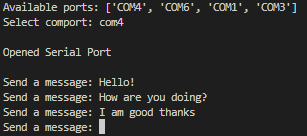
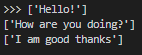
These are the expected results from the REPL:
This is how the VBOX Touch display looks at the end of these tests, it should update with whatever you enter: