Text
To create any graphic on the VBOX touch display, firstly you need to import the graphical user interface (gui) module by using the following code snippet:
import gui
To now create some text you need to use the CTRL_TEXT function of gui.
[gui.CTRL_TEXT, x, y, font, option, text]
Input Parameters:
x [int] = x coordinate
y [int] = y coordinate
font [int] = font of the text
option [int] = option for widget, see Options for more details
text [string] = string that will be displayed as the text widget. Can only use ASCII characters.
You may notice that this is a list, this is because gui.show() which we will use shortly takes a list of drawing commands as its input. This can be assigned to a variable name by doing:
text = [gui.CTRL_TEXT, 400, 240, 30, 1536, "HELLO WORLD"]
This can then be shown on the screen using gui.show()
gui.show(
    text,
)
This text can be coloured from the default of white or (255, 255, 255) using the following code that takes 3 inputs of red, green, and blue:
[gui.DL_COLOR_RGB(255,0,0)] # red text colour
This is done earlier in the gui.show() for it to have an effect as shown below:
gui.show([
    [gui.DL_COLOR_RGB(255,0,0)], # red text colour
    text,
])
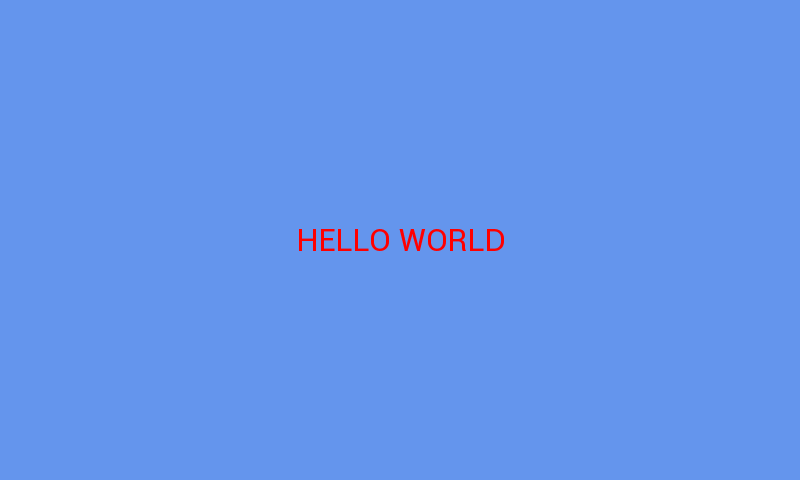
This colouring will apply to everything below it as well until a new colour is assigned so be careful.
The text displayed can be updated when it is assigned as a list variable as a reference to the part of the list to change can be made. For example, you can change the text displayed using:
text[5] = "---NEW TEXT---"