Sound Commands
Applies to:
All variants
The audio engine on the VBOX Touch uses the FT81X audio engine. This engine has 2 functionalities: playback the audio data in RAM_G and synthesize the sound effect stored in ROM with selected pitches. For both functionalities you need to import the ft8xx library:
import ft8xx as ft
Sound effects
The list of sound effects in ROM and the MIDI notes are shown in the table below.
Note
The MIDI note effects can be used in any sound effect that is pitch adjustable.
Hex Value |
Effect |
Continuous |
Pitch Adjust |
MIDI Note |
ANSI note |
Freq (Hz) |
|
|---|---|---|---|---|---|---|---|
0 |
Silence |
Y |
N |
21 |
A0 |
27.5 |
|
1 |
Square Wave |
Y |
Y |
22 |
A#0 |
29.1 |
|
2 |
Sine Wave |
Y |
Y |
23 |
B0 |
30.9 |
|
3 |
Sawtooth Wave |
Y |
Y |
24 |
C1 |
32.7 |
|
4 |
Triangle Wave |
Y |
Y |
25 |
C#1 |
34.6 |
|
5 |
Beeping |
Y |
Y |
26 |
D1 |
36.7 |
|
6 |
Alarm |
Y |
Y |
27 |
D#1 |
38.9 |
|
7 |
Warble |
Y |
Y |
28 |
E1 |
41.2 |
|
8 |
Carousel |
Y |
Y |
29 |
F1 |
43.7 |
|
10 |
1 Short Pip |
N |
Y |
30 |
F#1 |
46.2 |
|
11 |
2 Short Pips |
N |
Y |
31 |
G1 |
49 |
|
12 |
3 Short Pips |
N |
Y |
32 |
G#1 |
51.9 |
|
13 |
4 Short Pips |
N |
Y |
33 |
A1 |
55 |
|
14 |
5 Short Pips |
N |
Y |
34 |
A#1 |
58.3 |
|
15 |
6 Short Pips |
N |
Y |
35 |
B1 |
61.7 |
|
16 |
7 Short Pips |
N |
Y |
36 |
C2 |
65.4 |
|
17 |
8 Short Pips |
N |
Y |
37 |
C#2 |
69.3 |
|
18 |
9 Short Pips |
N |
Y |
38 |
D2 |
73.4 |
|
19 |
10 Short Pips |
N |
Y |
39 |
D#2 |
77.8 |
|
1A |
11 Short Pips |
N |
Y |
40 |
E2 |
82.4 |
|
1B |
12 Short Pips |
N |
Y |
41 |
F2 |
87.3 |
|
1C |
13 Short Pips |
N |
Y |
42 |
F#2 |
92.5 |
|
1D |
14 Short Pips |
N |
Y |
43 |
G2 |
98 |
|
1E |
15 Short Pips |
N |
Y |
44 |
G#2 |
103.8 |
|
1F |
16 Short Pips |
N |
Y |
45 |
A2 |
110 |
|
23 |
DTMF # |
Y |
N |
46 |
A#2 |
116.5 |
|
2C |
DTMF * |
Y |
N |
47 |
B2 |
123.5 |
|
30 |
DTMF 0 |
Y |
N |
48 |
C3 |
130.8 |
|
31 |
DTMF 1 |
Y |
N |
49 |
C#3 |
138.6 |
|
32 |
DTMF 2 |
Y |
N |
50 |
D3 |
146.8 |
|
33 |
DTMF 3 |
Y |
N |
51 |
D#3 |
155.6 |
|
34 |
DTMF 4 |
Y |
N |
52 |
E3 |
164.8 |
|
35 |
DTMF 5 |
Y |
N |
53 |
F3 |
174.6 |
|
36 |
DTMF 6 |
Y |
N |
54 |
F#3 |
185 |
|
37 |
DTMF 7 |
Y |
N |
55 |
G3 |
196 |
|
38 |
DTMF 8 |
Y |
N |
56 |
G#3 |
207.7 |
|
39 |
DTMF 9 |
Y |
N |
57 |
A3 |
220 |
|
40 |
Harp |
N |
Y |
58 |
A#3 |
233.1 |
|
41 |
Xylophone |
N |
Y |
59 |
B3 |
246.9 |
|
42 |
Tuba |
N |
Y |
60 |
C4 |
261.6 |
|
43 |
Glockenspiel |
N |
Y |
61 |
C#4 |
277.2 |
|
44 |
Organ |
N |
Y |
62 |
D4 |
293.7 |
|
45 |
Trumpet |
N |
Y |
63 |
D#4 |
311.1 |
|
46 |
Piano |
N |
Y |
64 |
E4 |
329.6 |
|
47 |
Chimes |
N |
Y |
65 |
F4 |
349.2 |
|
48 |
Music box |
N |
Y |
66 |
F#4 |
370 |
|
49 |
Bell |
N |
Y |
67 |
G4 |
392 |
|
50 |
Click |
N |
N |
68 |
G#4 |
415.3 |
|
51 |
Switch |
N |
N |
69 |
A4 |
440 |
|
52 |
Cowbell |
N |
N |
70 |
A#4 |
466.2 |
|
53 |
Notch |
N |
N |
71 |
B4 |
493.9 |
|
54 |
Hihat |
N |
N |
72 |
C5 |
523.3 |
|
55 |
Kickdrum |
N |
N |
73 |
C#5 |
554.4 |
|
56 |
Pop |
N |
N |
74 |
D5 |
587.3 |
|
57 |
Clack |
N |
N |
75 |
D#5 |
622.3 |
|
58 |
Check |
N |
N |
76 |
E5 |
659.3 |
|
60 |
Mute |
N |
N |
77 |
F5 |
698.5 |
|
61 |
Unmute |
N |
N |
78 |
F#5 |
740 |
|
79 |
G5 |
784 |
|||||
80 |
G#5 |
830.6 |
|||||
81 |
A5 |
880 |
|||||
82 |
A#5 |
932.3 |
|||||
83 |
B5 |
987.8 |
|||||
84 |
C6 |
1046.5 |
|||||
85 |
C#6 |
1108.7 |
|||||
86 |
D6 |
1174.7 |
|||||
87 |
D#6 |
1244.5 |
|||||
88 |
E6 |
1318.5 |
|||||
89 |
F6 |
1396.9 |
|||||
90 |
F#6 |
1480 |
|||||
91 |
G6 |
1568 |
|||||
92 |
G#6 |
1661.2 |
|||||
93 |
A6 |
1760 |
|||||
94 |
A#6 |
1864.7 |
|||||
95 |
B6 |
1975.5 |
|||||
96 |
C7 |
2093 |
|||||
97 |
C#7 |
2217.5 |
|||||
98 |
D7 |
2349.3 |
|||||
99 |
D#7 |
2489 |
|||||
100 |
E7 |
2637 |
|||||
101 |
F7 |
2793.8 |
|||||
102 |
F#7 |
2960 |
|||||
103 |
G7 |
3136 |
|||||
104 |
G#7 |
3322.4 |
|||||
105 |
A7 |
3520 |
|||||
106 |
A#7 |
3729.3 |
|||||
107 |
B7 |
3951.1 |
|||||
108 |
C8 |
4186 |
Synthesizing a sound
The VBOX Touch has the ability to synthesize any of the above sounds.
This is done by first setting the sound using the REG_SOUND flag in the wr16 function. This flag indicates that the next input will be (MIDI note << 8 | sound effect). And then playing the sound using the REG_PLAY flag in the wr8 function. This flag indicates that the next input will be a boolean (1 or 0) which is to either play a note or not do so.
The following lines of code show how it sets a C4 note to be played on a piano and then plays it a single time.
ft.wr16(ft.REG_SOUND, (60 << 8) | 0x46)
ft.wr8(ft.REG_PLAY, 1)
Note:
If the sound does not have pitch adjusted then it does not matter what pitch you play a note it will sound the same.
Set volume
You may have noticed that the sound from that previous part was a bit quiet. If you wish to make it louder you can set the volume with the REG_VOL_SOUND in the wr8 function as follows:
ft.wr8(ft.REG_VOL_SOUND, 40)
This indicates that the next value will be an integer of the volume. The valid values for which are the an integer between 0-255 with 0 being the lowest and 255 being the maximum volume.
Example program
This example program creates a display that allows you to press a sound and change the volume using a slider.
import gui
import ft8xx as ft

class Data:
    vol = [0]
    sound_dict = {
        "TUBA" : 0x42,
        "ORGAN" : 0x44,
        "TRUMPET" : 0x45,
        "CHIMES" : 0x47,
        "MUSIC BOX" : 0x48,
        "COWBELL" : 0x52,
    }

def press_cb(button_info):
    print(Data.sound_dict[button_info[6]])
    try:
        ft.wr16(ft.REG_SOUND, (60 << 8) | Data.sound_dict[button_info[6]])
    except KeyError:
        ft.wr16(ft.REG_SOUND, (60 << 8) | 0x0)

    ft.wr8(ft.REG_PLAY, 1)

def redraw_cb(b):
    Data.vol[0] = vol_sl[0] >> 8

gui_l = [[gui.EVT_REDRAW, redraw_cb]]
gui_l.extend([[gui.CTRL_BUTTON, 50, 90, 200, 100, 30, "TUBA", press_cb]])
gui_l.extend([[gui.CTRL_BUTTON, 300, 90, 200, 100, 30, "ORGAN", press_cb]])
gui_l.extend([[gui.CTRL_BUTTON, 550, 90, 200, 100, 30, "TRUMPET", press_cb]])
gui_l.extend([[gui.CTRL_BUTTON, 50, 240, 200, 100, 30, "CHIMES", press_cb]])
gui_l.extend([[gui.CTRL_BUTTON, 300, 240, 200, 100, 30, "MUSIC BOX", press_cb]])
gui_l.extend([[gui.CTRL_BUTTON, 550, 240, 200, 100, 30, "COWBELL", press_cb]])
gui_l.extend([[gui.CTRL_TEXT, 50, 380, 30, 0, "VOLUME:"]])
vol_sl = [2000]
gui_l.extend([[gui.CTRL_SLIDER, 50, 420, 700, 20, 0xffff, vol_sl]])

gui.show(
    gui_l,
)
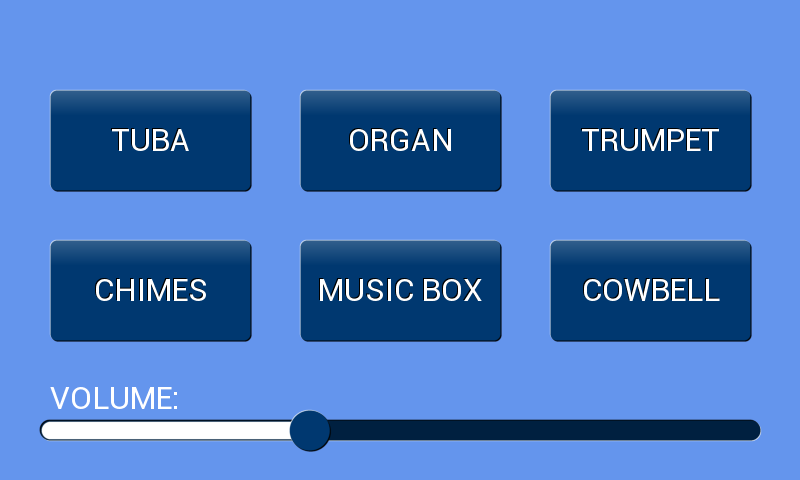
Audio Playback
The VBOX Touch has the ability to play sound files through the speaker at its base. It uses FT81X chips features that support an audio playback feature in 3 different format types. These are: 4 Bit IMA ADPCM, 8 Bit signed PCM and 8 Bit u-Law.
Reading an audio file
Reading in an audio file is done in the same way as reading in any other file. However it then needs to be written to the ft81x chip’s RAM.
with open("music.raw", 'rb') as f:
    sound = f.read()
    ft.wrbuf(ft.RAM_G, sound)
Set volume
You can customise the volume of this sound using the following flag.
ft.wr32(ft.REG_VOL_PB, 255)
Similarly to when you are setting the volume of synthesized sounds the range of valid inputs is an integer between 0 and 255 with 0 being the lowest and 255 being the maximum volume.
Setting up the Audio
Before you can play this audio playback you need to inform the VBOX Touch about some information:
Start Address which will be the start address in RAM (Provided you set any audio before the fonts and images).
The length of the file.
The sampling frequency of the file. This is typically 44100Hz.
The audio format being used.
Whether or not to loop playback of the audio file.
ft.wr32(ft.REG_PLAYBACK_START, ft.RAM_G) # Starts the playback and takes the starting address as input which we have set to where the current buffer for RAM_G is.
ft.wr32(ft.REG_PLAYBACK_LENGTH, len(sound)) # Takes the length of the file as its input parameter. This can easily be found using the len() python function on the variable that you used to read in the audio file.
ft.wr32(ft.REG_PLAYBACK_FREQ, 44100) # Takes an int as input. This int is the sampling frequency of the file in Hz. As this is an audio file this is almost always 44100HZ.
ft.wr32(ft.REG_PLAYBACK_FORMAT, 0) # This takes an integer value for the converted file format of 0=linear, 1=uLaw, 2=ADPCM, 3=undefined.
ft.wr32(ft.REG_PLAYBACK_LOOP, 0) # Takes either a 1 or a 0 where 1 means continuous looped playback and 0 means a single loop/disabled.
Playing Audio
To start the playback of the audio you simply have to send the start boolean (1) to the wr32 function with the REG_PLAYBACK_PLAY flag.
ft.wr32(ft.REG_PLAYBACK_PLAY, 1) # Starts the audio playback when given a 1.
Example function
The function below can be used to configure and start audio playback.
import ft8xx as ft

def playaudio(audiopath, frequency, format, loop, volume):
    try:
        with open(audiopath, 'rb') as f:
            sound = f.read()
    except OSError:
        return "Couldn't play the sound as file doesn't exist"

    ft.wrbuf(ft.RAM_G, sound)
    ft.wr32(ft.REG_PLAYBACK_START, ft.RAM_G)
    ft.wr32(ft.REG_PLAYBACK_LENGTH, len(sound))
    ft.wr32(ft.REG_PLAYBACK_FREQ, frequency)
    ft.wr32(ft.REG_PLAYBACK_FORMAT, format)
    ft.wr32(ft.REG_PLAYBACK_LOOP, loop)
    ft.wr32(ft.REG_VOL_PB, volume)
    ft.wr32(ft.REG_PLAYBACK_PLAY, 1)
Further examples
Piano - This is an example script which creates a small on-screen piano which can play different notes using buttons and has a slider that controls the volume