Adding colour
Colouring primitives
To set the colour of a primitive use:
gui.DL_COLOR_RGB(R,G,B)
Input Parameters:
R [int] = Amount of Red of the objects that follow it. This defaults to 255.
G [int] = Amount of Green of the objects that follow it. This defaults to 255.
B [int] = Amount of Blue of the objects that follow it. This defaults to 255.
This sets all following drawn primitives to have the colour defined by R, G and B. These values all range from 0-255 inclusive and represent the amount of red, green, and blue. Click here for a website that helps convert to RGB values.
To stop it from being defined for all following objects you will need to set it back to a default colour that you are happy with i.e. (255,255,255) which is white. You could define a default colour at the beginning of your document to speed this process up.
Filling a shape
To fill a shape you need to use stencils and scissors to fill an area of space.
Regular fill
A regular fill draws the shape in a single solid colour set by the current colour command.
Gradient fill
A gradient fill blends between two colours across the shape using the co-processor gradient command.
Colouring widgets
The table below shows what each colour function does to each widget
Widget |
ft8xx.cpcmd_fgcolor |
ft8xx.cpcmd_bgcolor |
gui.DL_COLOR_RGB |
gui.CTRL_TEXT |
NO |
NO |
YES |
gui.CTRL_BUTTON |
YES |
NO |
YES(Label) |
gui.CTRL_GAUGE |
NO |
YES |
YES(Needle and mark) |
gui.CTRL_KEYS |
YES |
NO |
YES(Text) |
gui.CTRL_PROGRESS |
NO |
YES |
YES |
gui.CTRL_SCROLLBAR |
YES(Inner bar) |
YES(Outer bar) |
NO |
gui.CTRL_SLIDER |
YES(Knob) |
YES(Right bar of knob) |
YES(left bar of knob) |
gui.CTRL_DIAL |
YES(Knob) |
NO |
YES(Marker) |
gui.CTRL_TOGGLE |
YES(Knob) |
YES(Bar) |
YES(Text) |
gui.CTRL_NUMBER |
NO |
NO |
YES |
Warning:
ft8xx.cpcmd_fgcolor and ft8xx.cpcmd_bgcolor will send a command directly to the processor and hence do not allow you to individually pick commands for each widget.
To correct the issue in the warning above use the direct reference to their commands:
[0xffffff0a, gui.DL_COLOR_RGB(0,0,0)] # = fg
[0xffffff09, gui.DL_COLOR_RGB(0,0,0)] # = bg
Or use the gui_utils framework (more about that here):
import gui_utils

gui_utils.FG_COLOUR(gui.RGB(0,0,0))
gui_utils.BG_COLOUR(gui.RGB(0,0,0))
Both solve the problem.
Brightness
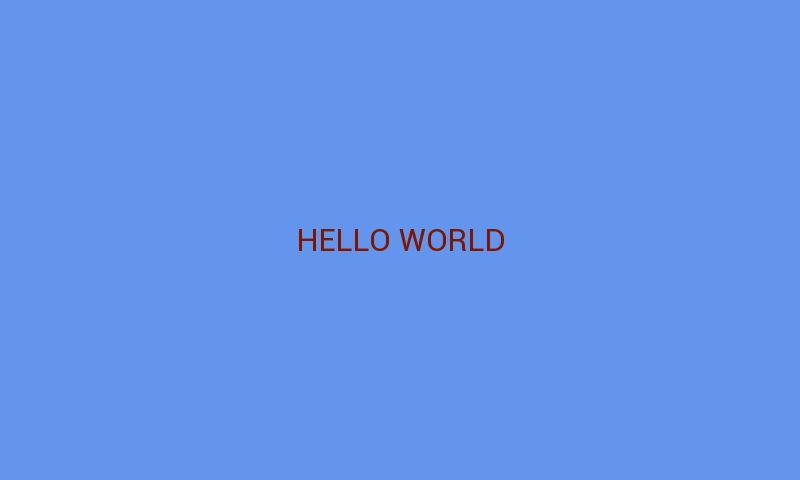
You can alter the brightness in many ways. If you want to alter just the brightness of a single object it is easiest to simply scale down the current colour it is. For example:
gui_l = [
    [gui.DL_COLOR_RGB(251, 46, 2)], # This will be bright orange
    [gui.CTRL_TEXT, 400, 240, 30, 1536, "HELLO WORLD"]]

scale = 2
less_bright_l = gui.DL_COLOR_RGB(251//scale,46//scale,2//scale)
gui_l[0][0] = less_bright_l # comment out this line to see the color before
gui.show(
    gui_l
)
The screenshots below show examples of this

If you want to alter the brightness of the entire screen including everything on it then you need to use the backlight library.