Keys
Introduction
This page will show you how to make a key graphic object. They are most often used to create an on-screen keyboard or other input devices that have a large range of inputs.
Creating a key graphic
To create a set of keys you need to use the following:
key_graphic1 = [gui.CTRL_KEYS, x, y, width, height, font, text, cb_func]
Input Parameters:
x [int] = x coordinate of the top left of the keys.
y [int] = y coordinate of the top left of the keys.
width [int] = width of each key.
height [int] = height of each key.
font [int] = font of each key.
text [string] = string in which it reads in each singular char as an individual key including spaces.
cb_func [func] = callback function to be triggered when a press has been released.
To read the data that is generated by pressing the key you need to use the EVT_PRESS event:
def press_cb(press_info):
    if press_info[0] == 1: # check for press as also triggers on release
        print(press_info[1]) # int ascii value
        print(chr(press_info[1])) # character
Don’t forget to add the event to gui.show()
gui.show([
    [gui.EVT_PRESS, press_cb],
    key_graphic1,
])
This will now print the int and character versions of what you press on the on-screen keyboard. It may seem like you cannot add ASCII characters such as backspace, but this is not the case. When you create keys1 you can add the ASCII value using the chr() function as shown below: keys1 = ‘qwertyuiop’ + chr(8) However, there is no graphic in the built-in fonts to display these characters so they will show up as a weird square of dots. Therefore, you need to display in some documentation what this is if you intend for other people to use your program.
Example
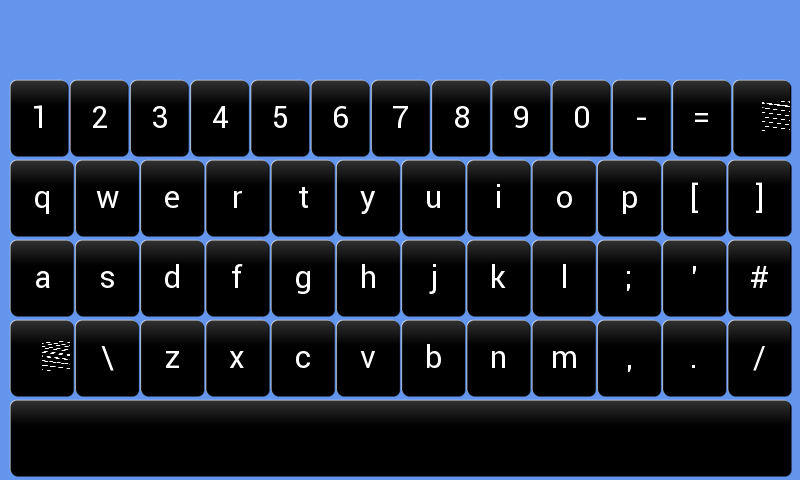
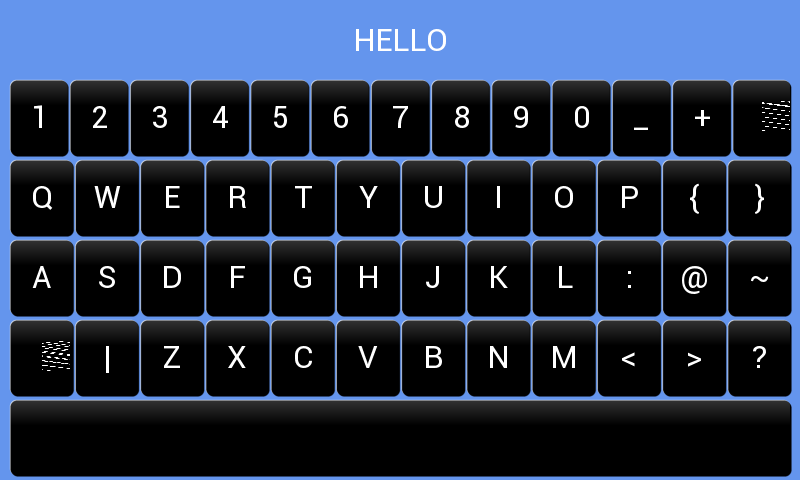
The example below is a keyboard like a regular one you would use but without some functionality, as it only has backspace and shift as its function keys. These are not displayed as the graphic, instead, the graphic is dots, however, they are in their usual places. It also sets the colour of these keys to black and white and when they are pressed they go green.
import gui

class data:
    typed = [gui.CTRL_TEXT, 400, 40, 30, 1536, '']
    keys0 = '1234567890-=' + chr(8)
    keys1 = 'qwertyuiop[]'
    keys2 = '''asdfghjkl;'#'''
    keys3 = chr(15) + '\zxcvbnm,./'
    keys4 = ' '

    # x, y, width, height, font, chars
    key_graphic0 = [gui.CTRL_KEYS, 10, 80, 780, 75, 30, keys0]
    key_graphic1 = [gui.CTRL_KEYS, 10, 160, 780, 75, 30, keys1]
    key_graphic2 = [gui.CTRL_KEYS, 10, 240, 780, 75, 30, keys2]
    key_graphic3 = [gui.CTRL_KEYS, 10, 320, 780, 75, 30, keys3]
    key_graphic4 = [gui.CTRL_KEYS, 10, 400, 780, 75, 30, keys4]

def press_cb(press_info):
    if press_info[0] == 1: # check for press as also triggers on release
        if (press_info[1] >=20) and (press_info[1] < 127):
            data.typed[5] += chr(press_info[1])

        elif press_info[1] == 8: # Backspace
            data.typed[5] = data.typed[5][:-1]

        elif press_info[1] == 15: # Shift
            if data.keys1.isupper():
                data.keys0 = '1234567890-=' + chr(8)
                data.keys1 = 'qwertyuiop[]'
                data.keys2 = '''asdfghjkl;'#'''
                data.keys3 = chr(15) + '\zxcvbnm,./'
            else:
                data.keys0 = '1234567890_+' + chr(8)
                data.keys1 = 'QWERTYUIOP{}'
                data.keys2 = 'ASDFGHJKL:@~'
                data.keys3 = chr(15) + '|ZXCVBNM<>?'


            data.key_graphic0[6] = data.keys0
            data.key_graphic1[6] = data.keys1
            data.key_graphic2[6] = data.keys2
            data.key_graphic3[6] = data.keys3

        print(data.typed[5])
        gui.redraw()

gui.show([
    [gui.EVT_PRESS, press_cb],
    data.typed,
    [0xffffff0a, gui.DL_COLOR_RGB(0,0,0)],
    [0xffffff09, gui.DL_COLOR_RGB(0,255,0)],
    [gui.DL_COLOR_RGB(255,255,255)],
    data.key_graphic0,
    data.key_graphic1,
    data.key_graphic2,
    data.key_graphic3,
    data.key_graphic4,
])