Scrollbar
Introduction
This tutorial explains how to create a scrollbar widget. These are mostly used with a scrolling display for a table.
Creating a scrollbar
To create the scrollbar you need to
Then you need to create a scrollbar object which takes an input of: x coord, y coord, width, height, an int in a list which is the size of the bar, the range and the value which is also an int in a list.
scrollbar = [gui.CTRL_SCROLLBAR, x, y, width, height, size, scale, val]
Input Parameters:
x [int] = x coordinate
y [int] = y coordinate
width [int] = integer for the distance for x to draw to.
height [int] = integer for the distance for y to draw to.
size [list[int]] = The value of the num to be scaled on the bar.
scale [int] = The scale for the bar.
val [list[int]] = The current value of the slider along the bar.
NOTE:
The scrollbar will automatically determine whether it should be vertical or horizontal based on which one out of width and height is greater.
WARNING:
The range should always be set as 0xFFFF as the ranging value setting doesn’t scale for other ranges. Instead, scale the value separately from this to whatever you are needing it for.
The scrollbar also has a callback function option however you must have your finger over the scrollbar for it to trigger on the release:
def scroll_cb(b):
    print("VAL: {}".format(data.val))

scrollbar = [gui.CTRL_SCROLLBAR, 100, 240, 600, 20, [1], 0xFFFF, val, scroll_cb]
Example
import gui
import gui_utils

class data:
    val = [1]

# callback only triggers based on where you are pressing so if your finger is not over the scrollbar then it won't trigger.
def scroll_cb(b):
    print("VAL: {}".format(data.val))

# Xpos, Ypos, width, height, options, size of bar, range, value
scrollbar = [gui.CTRL_SCROLLBAR, 100, 240, 600, 20, [1], 0xFFFF, data.val, scroll_cb]

gui.show([
    [0xffffff09,gui.DL_COLOR_RGB(0,0,0)], # background - black
    [0xffffff0a,gui.DL_COLOR_RGB(255,0,255)], # scrollbar marker pink
    scrollbar,
])
Practical example
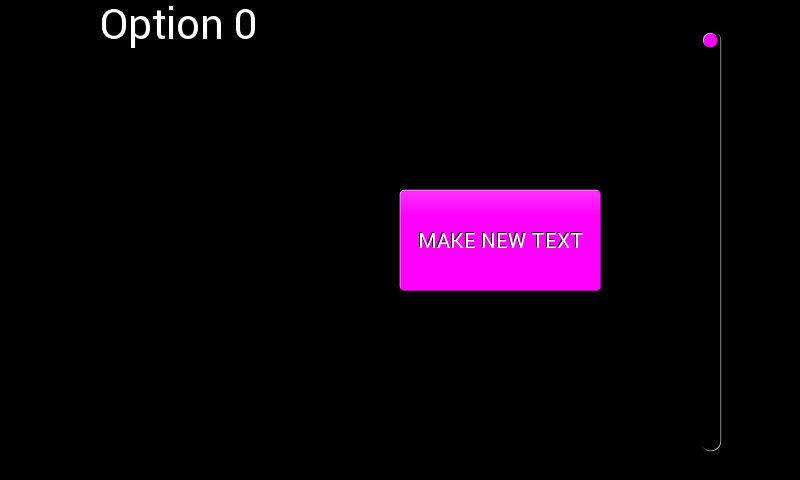
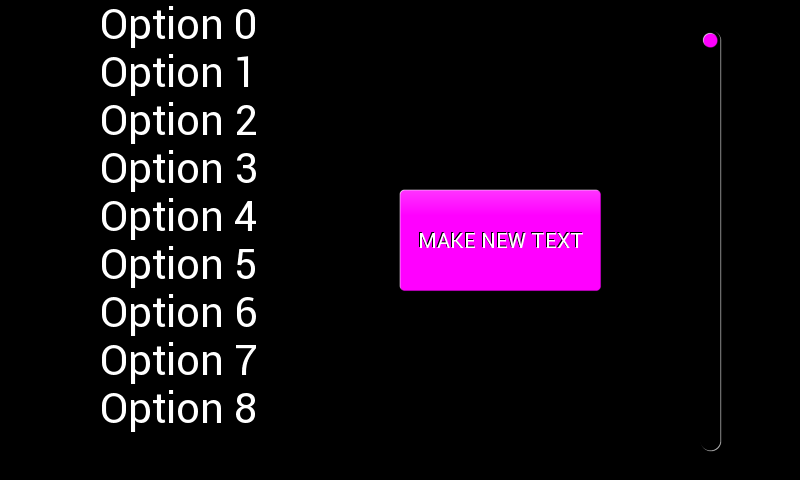
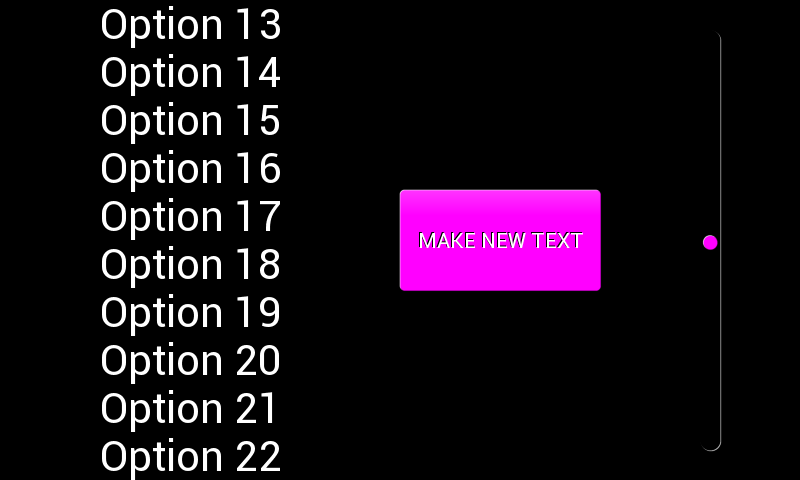
The following example has a button then when pressed makes new text. This text can be scrolled between using the scrollbar. It will only scroll to the maximum amount of values there are.
import gui

class data:
    val = [1]
    temp = 1
    gui_l = []
    current_num = 1
    scroll_point = 0

def vsync_cb(l):
    # checks if the value has changed (i.e is there scrolling)
    if data.temp != data.val[0]:
        data.temp = data.val[0]
        # this is so you can't scroll until you have filled the screen with text
        if data.current_num>10:
            # move the current position
            data.gui_l[data.scroll_point][0] = gui.DL_VERTEX_TRANSLATE_Y(-48*(data.val[0]//(65536//(data.current_num-10))))
        else:
            # current position = 0
            data.gui_l[data.scroll_point][0] = gui.DL_VERTEX_TRANSLATE_Y(0)
        gui.redraw()

def make_new_text_cb(b):
    # add 1 to current_num which is the num of buttons there are
    data.current_num+=1
    # reset draw as otherwise new text won't be drawn
    draw()

def draw():
    # Xpos, Ypos, width, height, options, size of bar, range, value
    scrollbar = [gui.CTRL_SCROLLBAR, 700, 40, 20, 400, [1], 0xFFFF, data.val]

    data.gui_l= [
        [gui.EVT_VSYNC, vsync_cb], #set function for re-drawing the screen
        [gui.DL_SAVE_CONTEXT()], #save these functions
        [gui.DL_CLEAR_COLOR_RGB(0, 0, 0)], #set the colour for clearing the screen
        [gui.DL_CLEAR(1, 1, 1)], #clear screen
        [gui.DL_RESTORE_CONTEXT()], #restore settings
        [gui.DL_COLOR(0xFFFFFF)], #set object (text) colour to white
        [gui.CTRL_BUTTON, 400, 190, 200, 100, 28, "MAKE NEW TEXT", make_new_text_cb],
        scrollbar,
        [gui.DL_VERTEX_TRANSLATE_Y(0)], #! Changing this from zero shifts all objects up/down by the value set
        [0xffffff09,gui.DL_COLOR_RGB(0,0,0)],
        [0xffffff0a,gui.DL_COLOR_RGB(255,0,255)]
        ]

    # recording this allows this to be updated and hence the use of gui.redraw()
    data.scroll_point = data.gui_l.index([gui.DL_VERTEX_TRANSLATE_Y(0)])

    for i in range(data.current_num):
        data.gui_l.append([gui.CTRL_TEXT, 100, 48*i, 31, 0, "Option {}".format(i)]) #adds text objects

    # anything after this will not be affected by the other translate
    data.gui_l.append([gui.DL_VERTEX_TRANSLATE_Y(0)])

    # display
    gui.show(
        data.gui_l,
    )

if __name__ == "__main__":
    draw()