Drawing a rectangle
Method 1
To create a rectangle, you can use a couple of methods, the easiest being using this primitive:
gui.PRIM_RECTS
This primitive takes 2 coordinates as inputs. It treats each of the 2 as corners of the rectangle. This then creates a filled rectangle from this. To determine the thickness of the lines and hence the edge of the rectangle use:
[gui.DL_LINE_WIDTH(5)]
Same as with PRIM_LINES. Again similar to the circle/line the fill colour is determined by :
[gui.DL_COLOR_RGB(255,255,255)]
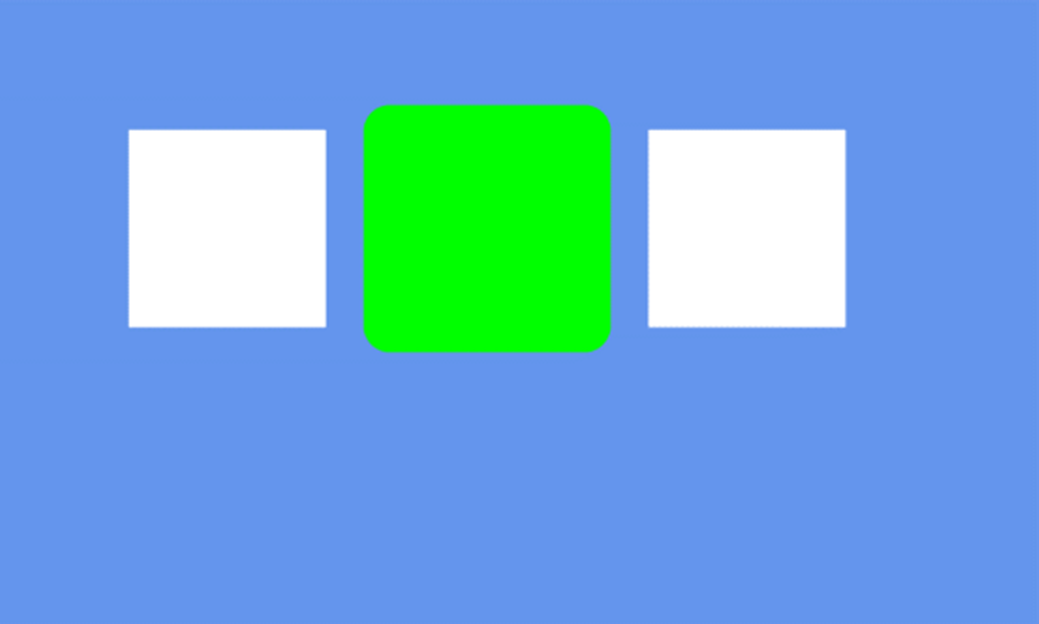
The following code shows an example of all of these being used:
import gui

gui.show([
    [gui.DL_BEGIN(gui.PRIM_RECTS)], # Create rectangles.
    [gui.DL_COLOR_RGB(255,255,255)], # Creates 2 white squares
    [gui.DL_VERTEX2F(100,100)],
    [gui.DL_VERTEX2F(250,250)],
    [gui.DL_VERTEX2F(500,100),
    gui.DL_VERTEX2F(650,250)],
    [gui.DL_END()], # Ends the rectangle generation.

    [gui.DL_COLOR_RGB(0,255,0)], # Creates a green square with curved edges.
    # Increases the width of the border lines. This creates round corners.
    [gui.DL_LINE_WIDTH(20)],
    [gui.PRIM_RECTS, # Can be called like this.
    [gui.DL_VERTEX2F(300,100),
    gui.DL_VERTEX2F(450,250)],
    ],])
Method 2
You can draw the outline of a rectangle using a continuous line of 4 points. This is shown in the code below in which the outline of the white square in the above code is drawn.
gui.show([
    [gui.DL_BEGIN(gui.PRIM_LINE_STRIP)],
    [gui.DL_VERTEX2F(100,100)],
    [gui.DL_VERTEX2F(250,100)],
    [gui.DL_VERTEX2F(250,250)],
    [gui.DL_VERTEX2F(100,250)],
    [gui.DL_VERTEX2F(100,100)], # Do not forget to return to the beginning
    [gui.DL_END()],])

To learn how to fill this shape see the Adding colour page.