Drawing a circle
Creating a circle on the VBOX Touch is equivalent to creating a large dot. To do so we first need to create a point, which is done using the following:
[gui.DL_VERTEX2F(x,y)]
Input Parameters:
x [int] = x coordinate on the screen
y [int] = y coordinate on the screen
Note:
The screen runs 0-800 from left to right and 0-480 from up to down.
From here you need to pick the correct primitive for what you wish to do. For a circle, you want to make a large point/dot so this is done using the following predefined constant.
gui.PRIM_POINTS
This is an example of a primitive.
Primitives can be used with:
[gui.DL_BEGIN(gui.PRIM_POINTS)]
[gui.DL_END()]
So that within the begin and end any VERTEX declared will be in the form of the primitive defined. For example, the code below will create 3 points on different points on the screen when inside a gui.show():
[gui.DL_BEGIN(gui.PRIM_POINTS)],
[gui.DL_VERTEX2F(100,50)],
[gui.DL_VERTEX2F(140,50)],
[gui.DL_VERTEX2F(180,50)],
[gui.DL_END()],
This can also be done with the primitive alone but isn’t as neat or as clear and so is better suited for an individual circle:
[gui.PRIM_POINTS,
    [gui.DL_VERTEX2F(100,50),
    gui.DL_VERTEX2F(140,50),
    gui.DL_VERTEX2F(180,50)],
]
You probably have noticed that the code we have used up to this point displays very small dots on the screen. If you wish to alter the size of this use the following:
[gui.DL_POINT_SIZE(size)]
Input Parameters:
size [int or float] = Radius of the point in pixels (the gui module converts it to the FT8xx’s 1/16-pixel units for you, so do not multiply by 16). This defaults to 1 hence the reason the dots are very small.
So far all the circles, that the code has shown you how to create, are white. To colour points use:
[gui.DL_COLOR_RGB(R,G,B)]
Input Parameters:
R [int] = Amount of Red of the objects that follow it. This defaults to 255.
G [int] = Amount of Green of the objects that follow it. This defaults to 255.
B [int] = Amount of Blue of the objects that follow it. This defaults to 255.
This will fill the entire circle with the same colour.
Note:
When colouring anything using gui.DL_COLOR_RGB() it applies to all objects below it until the function is called again so be careful when you use it.
A circle is different from the other shapes as by default it is made filled. This is because the method used is just making a very big dot.
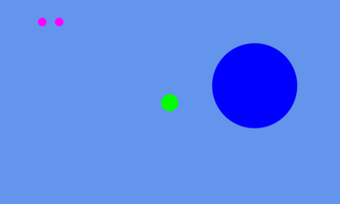
This example program below gathers all these things together and shows how each is used to create different circles all over the screen:
import gui
circle_pos = [gui.DL_VERTEX2F(400, 240)] # created a circle position

gui.show([
    [gui.DL_POINT_SIZE(20)], # set size to 20
    [gui.DL_COLOR_RGB(0,255,0)], # set colour to green
    [gui.PRIM_POINTS,circle_pos], # make point at circle pos
    [gui.DL_POINT_SIZE(10)],
    [gui.DL_COLOR_RGB(255, 0, 255)], # set colour to purple
    [gui.DL_BEGIN(gui.PRIM_POINTS)],
    [gui.DL_VERTEX2F(100,50)],
    [gui.DL_VERTEX2F(140,50)],
    [gui.DL_POINT_SIZE(100)],
    [gui.DL_COLOR_RGB(0, 0, 255)], # set colour to blue
    [gui.DL_VERTEX2F(600,200)],
    [gui.DL_END()],])